This page covers the Run requests dialog (the collection runner), the Load test dialog and the Scan for secrets dialog, including the notices the scanner shows in the Share and Export tabs. Each one is opened from the command palette; see Preferences and shortcuts for the palette. The command line equivalents are described in Command line and Gostman in CI, so this page does not repeat their flags.
Run requests
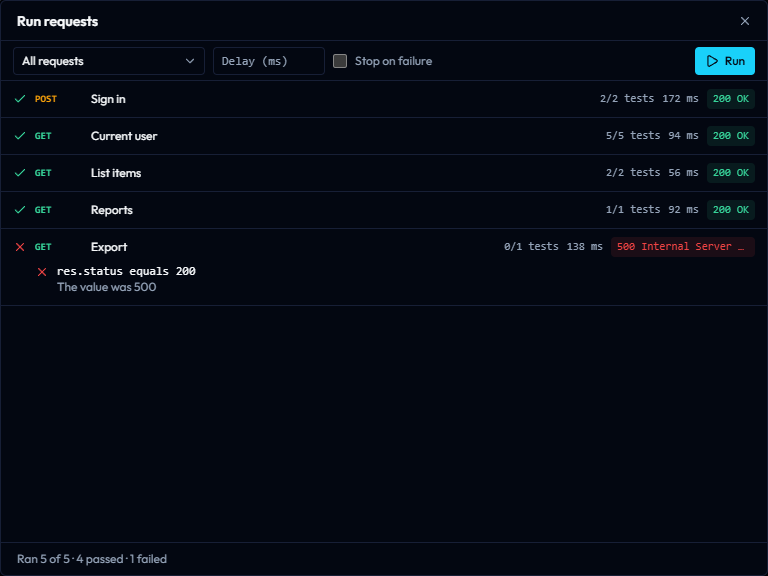
The Run requests dialog sends the requests of your collection one after another and shows the outcome of each. Open it with the Run requests command, or with Run folder in a folder's menu in the sidebar, which preselects that folder.
Requests run in sidebar order, with their scripts, extraction rules and assertions, using the active environment. WebSocket requests are skipped.
Options
| Control | What it does |
|---|---|
| Requests to run | Chooses All requests or one folder. Folders are listed by their full path, separated by /. |
| Delay (ms) | Waits this many milliseconds after each request before the next one. Empty means no delay. |
| Stop on failure | Stops the run after the first request that fails. |
| Data file (CSV or JSON) | Loads a file with one row per iteration. See Data files. |
| Iterations | Limits the number of iterations. The highest value is 10000. |
| Parallel | Sends up to this many requests at once. Empty means 1. |
| Run and Stop | Starts the run. While a run is going, Stop cancels the requests in flight and ends it. |
All controls except Stop are disabled while a run is going. Run is disabled when no request is in scope.
Data files
A data file runs the whole selection once per row.
- A CSV file needs a header row. Quoted fields may contain commas and line breaks, and every value is text.
- A JSON file must be an array of objects, one object per iteration.
- A data file can have at most 10000 rows, and it must have at least one.
- A row's columns become variables for that iteration and take precedence over the environment's variables.
iteration(starting at 1) anditerationCountare set as well, so you can write{{iteration}}in a request. - With a data file loaded, the dialog shows its name and row count. Select that button to remove the file.
- If Iterations is set, only that many rows are used, up to the number of rows in the file. Without a data file, Iterations repeats the run that many times.
The active environment's variables are restored after the run.
Parallel runs
With Parallel above 1, requests are sent together and do not see each other's extracted variables, so use it for requests that do not depend on each other. With several iterations, the parallel count applies inside each iteration, and iterations run one after another.
Results
Each row of the results list shows:
- an icon for the outcome: passed, failed or skipped;
- the method and the request name, with
#and the iteration number when the run has iterations; - the number of passed assertions out of the total, the duration in milliseconds and the status;
- the message of any error, and each failed assertion with its detail.
The footer reads, for example, Ran 5 of 5 · 4 passed · 1 failed. Before a run it shows how many requests are in scope, and how many iterations when there is more than one.
A 4xx or 5xx status does not fail a request by itself. Add an assertion such as res.status equals 200, as in the screenshot above. A request also counts as failed when it gets no response or when its script raises an error.
Download HTML report
Download HTML report saves the results of the last run as gostman-report.html. It is disabled while a run is going and when there are no results. The command line produces the same report with --reporter html; see Command line and Gostman in CI.
The report is not redacted for you. Review it before you share it.
Load test
The Load test dialog sends the current request many times at once and measures how the server responds. Open it with the Load test this request command while the request you want to test is the active tab.
The command appears only in the desktop app. In the web version the palette does not offer it.
Only test systems you own or have permission to test.
Before you start
The dialog shows the request's method and URL, and a notice: each worker sends the request as it is shown there, without scripts or shared cookies.
The dialog refuses a request in these cases and shows the reason:
- The request has no URL:
Give the request a URL first. - The request is gRPC, MCP, WebSocket or streaming:
Only HTTP requests can be load tested.
Settings
| Field | Meaning |
|---|---|
| Concurrent workers | Number of workers sending at the same time. Starts at 10, at most 500. |
| Duration (seconds) | How long the test runs. Starts at 10, at most 600. |
| Requests per second cap | Limits the overall rate. Leave it empty for no cap. |
Start is disabled until workers and duration are at least 1. While the test runs, the badge Running is shown and Stop ends it early; the result is then labelled Stopped early. Closing the dialog also stops a running test.
Results
While the test runs, the dialog shows Elapsed, Requests, Requests/s, p95 and Failed.
When it ends, it shows:
- Requests, Succeeded, Failed, Requests/s and Received (bytes). Hover over Failed to see how many were network errors and how many came back with an error status.
- Latency in milliseconds: min, mean, p50, p90, p95, p99 and max. Percentiles are accurate to within 1%.
- Latency distribution, a histogram of response times.
- Status codes, with a count per code.
- Error samples, when some requests failed.
For thresholds that fail a pipeline, a fixed request count or a ramp-up, use gostman load; see Load testing in the command line page.
Scan for secrets
The Scan for secrets dialog looks through your collection for credentials that were typed into it, before you share or commit it. Open it with the Scan for secrets command.
It looks for well-known token formats, random-looking values in credential fields and passwords typed into auth settings. Values written as {{variables}} are not reported. Nothing leaves the window except the check itself, and only a few characters of a value are ever shown.
The scanner is a heuristic. A clean result is not proof that nothing is exposed; see Secret scanner for what it can miss.
Reading the findings
The dialog title shows the number of findings. When the list is empty it shows No secrets found.
Each finding shows:
- a severity, High or Medium;
- where it was found: Request, Folder, Environment or Collection, with the path and the field;
- a short preview of the value, the reason and the name of the rule that matched.
For a finding in a request, Go to request opens that request.
By default the scan includes saved example responses. Clear Include saved example responses to leave them out.
To fix a finding, move the value into a variable and refer to it as {{name}}. Mark the variable as secret so it stays out of the collection files; see Variables.
Notices in Share and Export
The Share and Export tabs run the same scan on what you are about to hand over. When something is found, a notice reads N possible secrets found with advice and a Show findings button, which lists them the same way as the dialog.
- In Share, the notice says the values stay in the link or file you create. Creating the link or file is held back until the scan has finished. If there are findings, it stays held until you replace the values or select Share anyway.
- In Export, the notice says the values are written into the export. It does not block the export.
If the scan itself fails, the tab shows The check could not run with the reason.
For the Share tab, a separate message counts requests that hold a password, token or key typed directly into the Auth tab. Those are part of the request and are shared with it.