This page covers the sidebar and collection tree, request tabs, the welcome panel, the storage menu (app storage, opened folders, recent folders and trust) and the Git panel. Folder files and the mock server are described in Folders, mock server and capture.
Sidebar
The sidebar has two views, Collections and History. The History tab shows a count of saved entries when there are any.
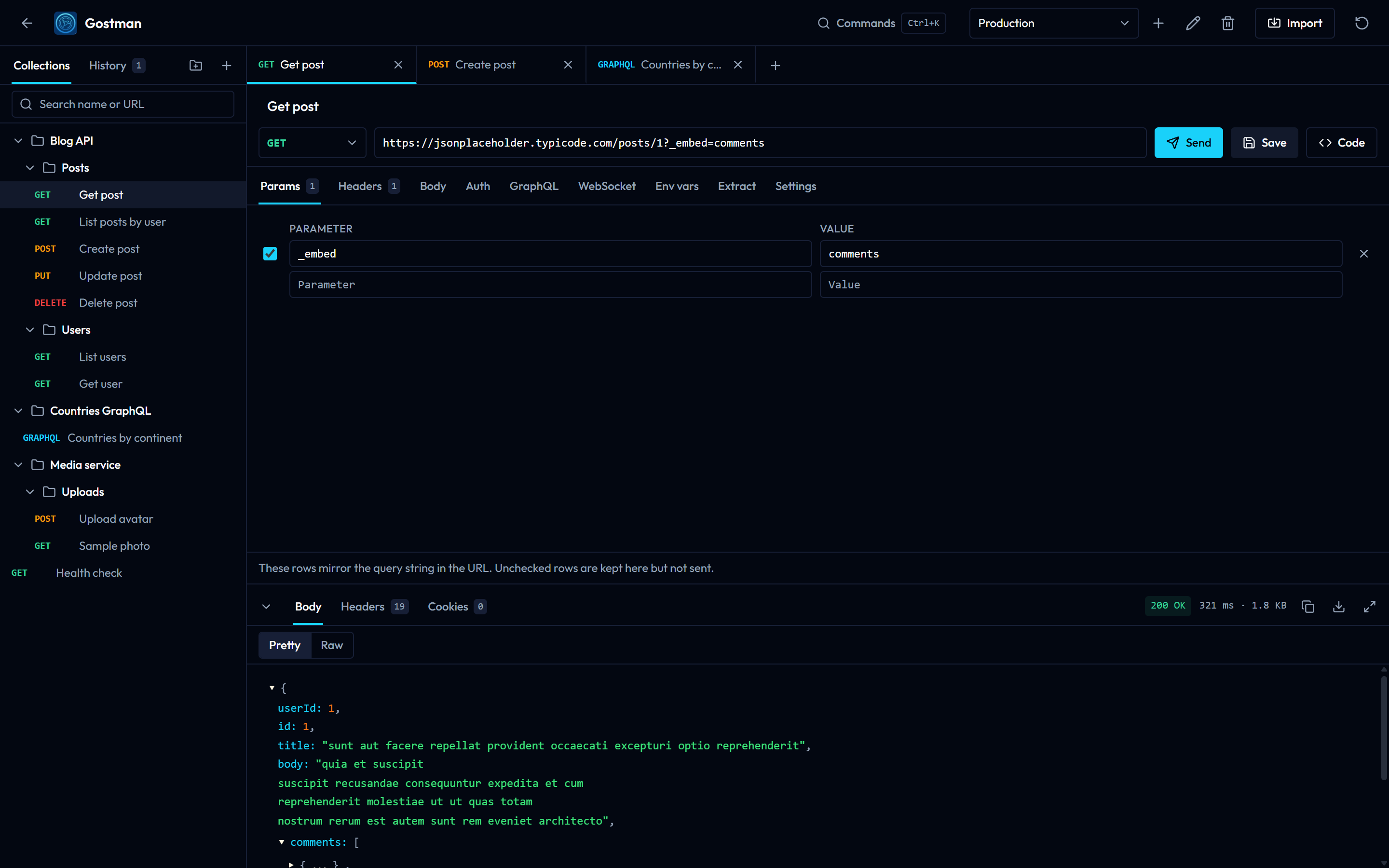
The buttons next to the view tabs are:
| Button | What it does |
|---|---|
| Run requests | Opens the collection runner |
| Collection settings | Opens the settings of the whole collection, see Folder and collection settings |
| New folder | Creates a folder |
| New request | Creates a request; the tooltip shows its keyboard shortcut |
Collection tree
The tree lists folders and requests. Each request row shows its method and name, and hovering a row shows its URL. Folders can hold other folders. An import moves folders nested deeper than 32 levels to the top level.
- Click a folder to open or close it.
- Click a request to open it in a preview tab. Double-click it to keep the tab open.
- An empty folder shows This folder is empty.
- An empty collection shows No requests yet with New request and Import buttons, and a Paste button when you have copied an item.
Search
The Search name or URL field filters the tree by request name or URL. When nothing matches, the tree shows No results. Drag and drop is switched off while a search is active.
Move, copy and duplicate
You can rearrange the tree in three ways:
- Drag and drop. Drag a request or folder onto another row. Dropping on the upper or lower part of a row places the item before or after it. For a folder, dropping in the middle puts the item inside it, and a closed folder opens after you hold the item over it. Dropping in the empty area of the tree moves the item to the top level. A folder cannot be dropped into itself or into one of its own subfolders.
- Keyboard. With a row focused, press Alt+Up Arrow or Alt+Down Arrow to move it, Ctrl+C to copy, Ctrl+V to paste and Ctrl+D to duplicate. On macOS the Ctrl shortcuts use the Command key.
- Context menu. Described below.
After a move, paste or duplicate, a notice names the item and offers Undo.
Context menu
Right-click a row, or use the actions button that appears when you hover it, to open the menu.
For a request:
- Rename
- Move up, Move down, Move to folder
- Copy, Paste, Duplicate
- Delete
Move to folder lists Top level and every folder as a target. The current location and folders that would nest a folder inside itself are disabled.
For a folder, the menu adds these entries before the move and copy entries:
- New request and New subfolder inside the folder
- Run folder
- Share folder, which opens the Share tab, see Sharing and documentation
- Settings, the folder settings described in Folder and collection settings
- Check for spec updates and Browse API spec, only for a folder created from an OpenAPI spec that has a saved address or file, see Import, export and OpenAPI specs
A folder also has Rename and Delete.
Tabs
Each open request has a tab above the editor. A tab shows the method and the request name, or its URL when the name is empty.
- A tab in italics is a preview tab. Opening another request from the tree replaces it. Editing the request, double-clicking the tab or choosing Keep tab open in its menu keeps it.
- A small dot on a tab means the request has unsaved changes. Open tabs, including these drafts, are stored with the app data, so they come back when you restart.
- Click the plus button for a new request tab, or middle-click a tab to close it.
- Drag a tab to reorder it, or press Alt+Shift+Left Arrow or Alt+Shift+Right Arrow with the tab focused.
The tab context menu contains:
| Entry | Effect |
|---|---|
| Close | Closes the tab |
| Close other tabs | Closes every other tab |
| Close tabs to the right | Closes the tabs after this one |
| Close saved tabs | Closes tabs without unsaved changes |
| Keep tab open | Only on preview tabs |
| Move left, Move right | Reorders the tab |
| Reveal in collection | Scrolls the tree to the saved request; disabled for a request that is not saved |
| Copy as cURL | Copies the prepared request as a curl command; only HTTP requests can be copied |
When tabs with unsaved changes are about to close, a Close tabs prompt asks you to confirm with Discard. This prompt depends on a preference in the app settings.
Welcome panel
A new, blank tab with no response shows the Welcome to Gostman panel. It is not shown again once you dismiss it, and you can bring it back with the Show welcome command in the command palette.
The panel offers:
- Send sample request, a
GETtohttps://httpbin.org/anything?hello=world. - Import for Postman, Bruno, Insomnia, OpenAPI, HAR or a curl command.
- Open folder, only where folder storage is available (see below).
- New collection, which creates a folder in the sidebar.
- A hint to paste a curl command into the address bar to fill the request.
- A list of keyboard shortcuts and a note on variables: a name in double braces is green when the active environment defines it and orange when it is missing.
Storage menu
The button in the header shows where the collection lives.
- Web app: the button reads This browser. Selecting it explains that the collection is saved in the browser and that keeping it as files in a folder needs the desktop app.
- Desktop app: the button reads This computer until you open a folder, then it shows the folder name. A warning icon marks a restricted folder and another marks unreadable files.
Folder storage and the Git panel exist only in the desktop app. Both depend on backend.storage, which is null on the web.
The workspace menu
Choosing the button opens a menu. The shortcut for it is shown in the button tooltip; the Switch workspace shortcut is not active on the web.
- This computer (no folder) switches back to app storage.
- Pinned and Recent list the folders you opened. A folder that no longer exists is marked Folder not found.
- Choosing a folder switches to it and keeps the tabs of the current workspace.
- Each folder has buttons to Pin or Unpin, Rename (only the name in the list changes, not the folder on disk), Show in file explorer and, for folders other than the current one, Remove from list. Removing a folder from the list leaves its files on disk and forgets its trust and saved tokens.
The footer of the menu has these actions:
| Action | Effect |
|---|---|
| Trust this folder | Shown only for a restricted folder |
| Open folder | Picks a folder to use as the collection |
| Save collection to folder | Writes the current collection into a folder you pick |
| Clone repository | Asks for a repository address, then a folder to clone into |
| Git | Opens the Git panel; needs an open folder |
| Reload from disk | Rereads the folder; needs an open folder |
| Show N unreadable files | Lists files that could not be read; shown only when there are some |
| Close folder | Returns to app storage; needs an open folder |
Files that cannot be read are skipped and left unchanged. Fix them, then choose Reload from disk.
Trust
A folder you did not create opens as restricted. In a restricted folder, scripts and OAuth 2.0 settings are switched off and the Git panel is read-only. Trust this folder asks for confirmation, explains that requests can carry scripts and OAuth 2.0 settings that run when a request is sent and can read your variables, and then lifts the restriction.
Git panel
The Git panel is a desktop feature. It works on the open folder, so open or save the collection to a folder first, or clone a repository from the workspace menu. The panel refreshes when the app window regains focus.
If the panel cannot work, it says why:
- Git is not installed, with an install hint.
- Git works on folder workspaces, when no folder is open.
- This folder is not a Git repository, with an Initialize repository button.
In a repository, the header shows the current branch (or Detached HEAD) and the buttons Fetch, Pull and Push. Pull and Push show how many commits you are behind or ahead. In a restricted folder, the panel shows a notice with a Trust this folder link and everything that changes the repository is disabled.
The panel has five sections: Changes, Branches, Stashes, History and Remotes. Output from a Git operation appears in a notice at the top.
Changes
The left side lists files in up to three groups: Conflicts, Staged and Changes. Each row shows a status letter (for example Modified, Added, Deleted or New) and a short summary of what changed in the request or folder.
- Select a file to see its diff on the right. Added lines, removed lines and hunk headers are colored. A binary file shows This file is binary, so there is no line diff.
- Use the plus and minus buttons to stage and unstage a file, or Stage all.
- Use the discard button on an unstaged file to restore it. A prompt warns that this cannot be undone.
- Use the history button on a row to open the History section for that file.
- Type a Commit message and choose the commit button. With nothing staged, the button reads Commit all changes; otherwise it reads Commit N staged files. Committing is disabled while conflicts remain.
Branches
- Create branch makes a branch from the current commit.
- Local branches show a current badge, their upstream and a Switch button. Other local branches also have a delete button that asks for confirmation; Git refuses if the branch has unmerged commits.
- Remote branches have a Check out button.
Stashes
A stash sets uncommitted changes aside. Stash changes takes an optional note. Each stash has Apply, Pop and a drop button, and dropping asks for confirmation.
History
Enter a file path to see the history of one file, or leave it empty for the whole repository, and choose Show history. Selecting a commit of a single file shows its diff, and Restore this version replaces the file with that commit's content after a confirmation.
Remotes
Add remote takes a name (default origin) and an address. Each remote has a Change button for its address. Create pull request in browser appears once a remote exists.
Merges and conflict resolution
When a merge is in progress, a notice says to resolve each conflicted file and commit to finish, shows how many files are still in conflict and offers Abort merge. Aborting undoes everything from the merge, including resolutions you already made, and asks for confirmation.
Select a file under Conflicts to open the conflict editor:
- Ours and Theirs show each side, with Accept ours and Accept theirs buttons. A side whose file was removed shows Deleted on this side.
- Result is an editable text area. Accept both puts the two sides together, and Reset restores the working file.
- If the result still contains conflict markers, a warning appears and Mark resolved stays disabled.
- Mark resolved saves the result for that file.
What is desktop-only
- Opening folders, saving to a folder, cloning, workspace switching and the Git panel need folder storage, which exists only in the desktop app.
- The web app keeps the collection in the browser and has no Git panel. See the README for the other differences between the web and desktop apps.