This page covers every protocol you can test from Gostman: REST and other HTTP requests, GraphQL, gRPC, WebSocket, Server-Sent Events, SOAP and MCP servers. It describes what each protocol's panel does and where the desktop app and the web app differ. To let a coding agent call your APIs through Gostman instead, see Use from a coding agent.
Every protocol uses the same request bar, variables, environments, auth and saved collections. Requests are prepared and sent by the Go engine in both the desktop app and the web app, so a request behaves the same in both unless this page says otherwise.
REST and HTTP
The method list in the request bar offers GET, POST, PUT, DELETE, PATCH, HEAD and OPTIONS. It also offers GRAPHQL, GRPC and MCP, which switch the request to those protocols. A request that arrives with another method, for example from an import, keeps that method in the list.
- Type a URL in the bar, or paste a curl command into it to turn the command into a request.
- Use
{{name}}placeholders for variables from the active environment. - The Body tab offers None, JSON, Text, XML, SOAP, Form URL-encoded, Multipart and File.
- The Settings tab has Follow redirects and Verify TLS certificates.
- The Code button generates a snippet for the request. The snippet comes from the same engine, so it matches what is sent.
Limits that apply to every protocol on this page:
- The web app relays requests through a small proxy. The hosted proxy cannot reach
localhostor private network addresses, so use the desktop app for local servers. - Proxy, CA certificate and client certificate settings exist only in the desktop app.
- The web app truncates responses larger than 3 MB. The desktop app reads up to 50 MB.
GraphQL
Choose GRAPHQL in the method list, or open the GraphQL tab and select Send as GraphQL. The engine sends a POST request with a JSON body that holds query and, when you provide them, variables. If the query editor is empty, the engine falls back to the request body.
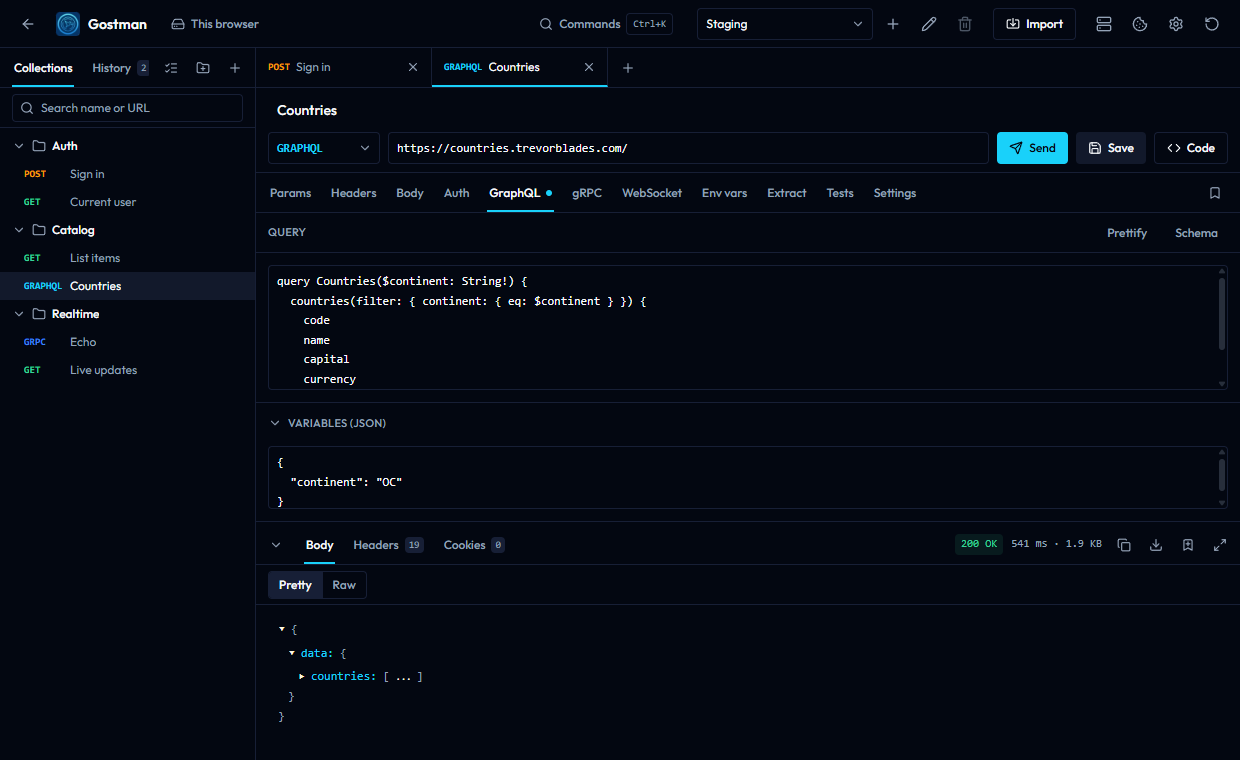
Query and variables
- The editor labelled GraphQL query checks syntax as you type and shows the error with its line and column. Placeholders are replaced with environment values before the check.
- Prettify reformats the query. It removes comments, and it reports an error if the query cannot be parsed.
- Variables (JSON) holds the variables. It must be a JSON object, and Gostman marks it when it is not valid JSON.
- If the method is not GRAPHQL, the tab shows that the query is not sent while the method is something else.
Schema browser
Select Schema to open the schema pane, then Fetch. Gostman sends an introspection query with the URL, headers and auth of this request. The button changes to Refresh after the schema loads.
- The search box, Search N types and fields, matches type names and field names.
- Each type shows its kind and, when you expand it, the signatures and descriptions of its fields, input fields, enum values or possible types.
- The list shows up to 100 matching types at a time. Narrow the search to see the rest.
Query builder
Select Builder to open the query builder. It uses the same introspection result, so use Fetch schema first, or Refresh schema to reload it.
- Operation type switches between Query, Mutation and Subscription for the root types the schema defines.
- Filter fields narrows the tree.
- A checkbox next to a field selects it, and a checkbox next to an argument includes that argument. Gostman writes the result into the query editor and may update the variables.
- Fields that a fragment in the editor already selects are locked. Edit them in the editor.
- The builder pauses while the editor has a syntax error.
Subscriptions
Gostman sends GraphQL as a normal HTTP request. To read subscriptions from a server that delivers them as server-sent events, turn on Stream as server-sent events in the Settings tab. See Server-Sent Events.
gRPC
Choose GRPC in the method list. The address is a grpc://host:port URL for plaintext or grpcs://host:port for TLS. The default port is 80 for grpc:// and 443 for grpcs://. TLS certificates are verified unless you turn off Verify TLS certificates in Settings.
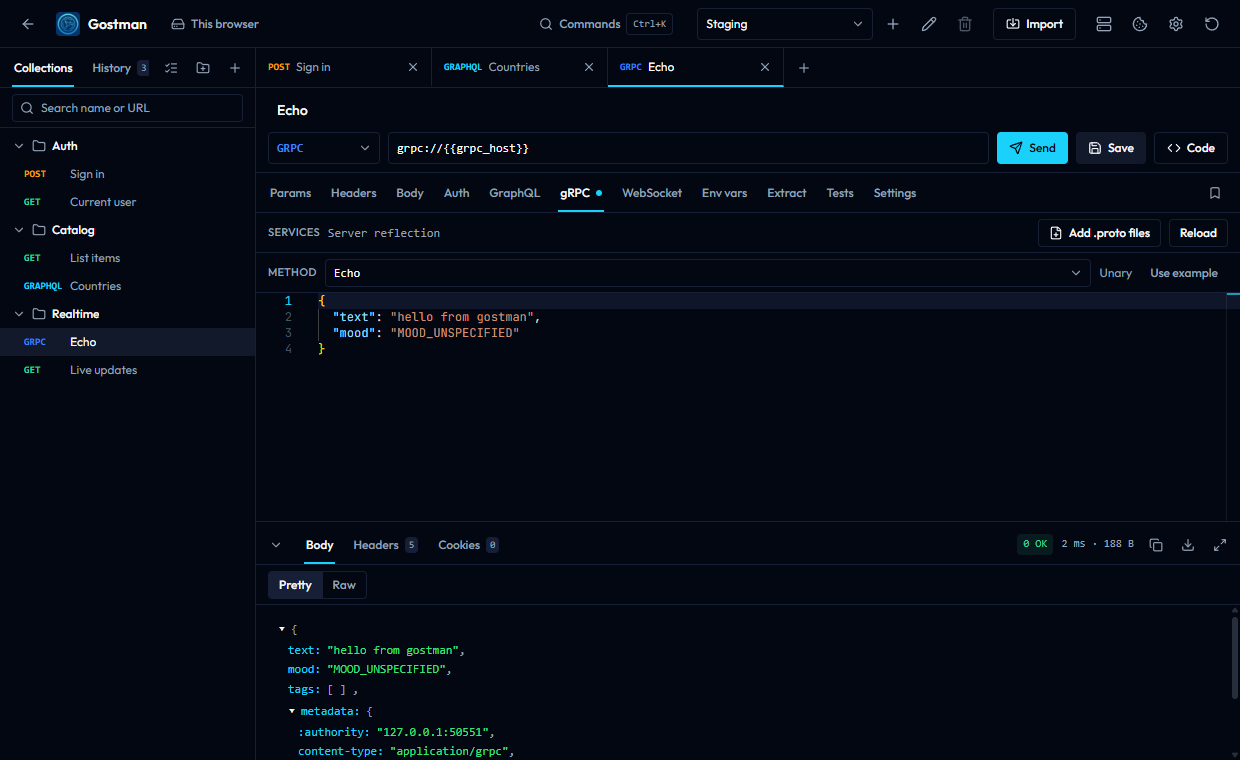
Load the services
The Services line shows where the service list comes from.
- With no files added it shows Server reflection. Select Load, and Gostman asks the server for its services through reflection. The button changes to Reload afterwards.
- Select Add .proto files to pick one or more
.protofiles. When files are present, Gostman compiles them and uses them instead of reflection. The file names appear in the Services line. - Adding a file with the same name replaces the earlier one. Remove files clears them.
- The address, headers and auth of the request are used for the connection.
- A file over the attachment size limit is rejected with a message that names the file.
If the server reports no services, the panel shows No services were found.
Call a method
- Pick a method from the Method list. It groups methods by service. Before you load services you can type a name in the form
package.Service/Method. - The label next to the list shows the kind: Unary, Server streaming, Client streaming or Bidirectional streaming.
- Select Use example to replace the message with a generated example of the method's input type. Choosing a method fills the message with that example when the message is empty or
{}. - Edit the JSON message and select Send.
Messages are written as JSON and converted with the protobuf JSON mapping.
Streams
Gostman does not run interactive streams. It collects them.
- For a method that reads a stream from the client, write a JSON array to send several messages. All of them are written up front.
- For a server-streaming method, the response body is a JSON array of every message received. For other methods the body is the single reply message.
- The response is shown when the stream ends. The web app behaves the same way.
- If the reply is larger than the response size limit, the response is marked as truncated.
Metadata and status
- Request headers are sent as gRPC metadata. Keys are lower-cased. A header name with characters metadata cannot carry, or a value with non-ASCII characters on a key that is not binary, is reported as an error before anything is sent.
- The response status shows the gRPC status code and its name, for example
0 OK. - The response headers list the server's header metadata, its trailer metadata,
grpc-statusand, when present,grpc-message. - When a call fails and no message came back, the body is a JSON object with
codeandmessage.
Desktop and web
gRPC works in both apps. In the web app the call goes through the proxy, so it cannot reach localhost or private addresses. Proxy and certificate settings apply only in the desktop app.
WebSocket
Enter a ws:// or wss:// URL. The Send button becomes Connect, and the WebSocket tab opens. Placeholders in the URL and in the headers are replaced with environment values. If the URL uses a variable the active environment does not define, the panel shows which ones are missing.
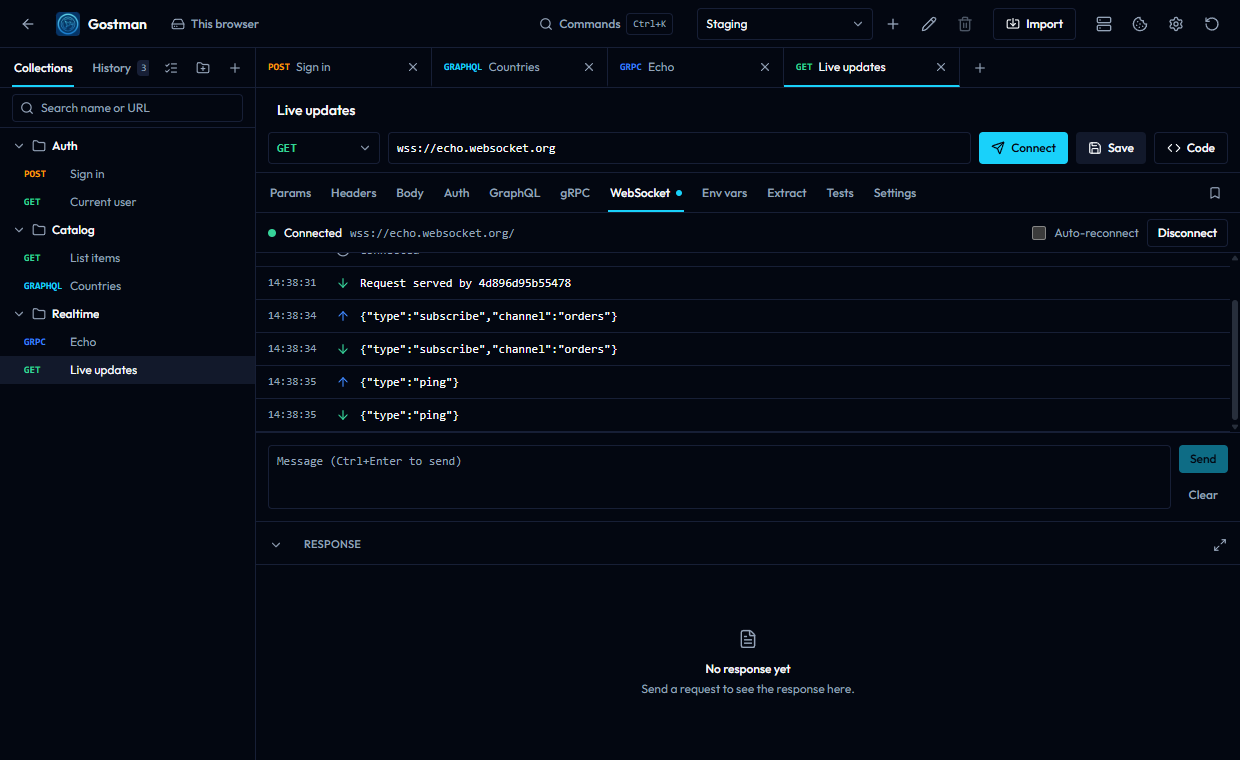
Connect and send
- The status next to the address is Disconnected, Connecting, Connected or Waiting to reconnect.
- Connect opens the session and Disconnect closes it. Each tab keeps its own session, and closing the tab ends it.
- Type in the Message box and select Send, or press Ctrl+Enter. On macOS the shortcut is shown with the Command key. The box is disabled until the session is connected.
- Sent messages are text. Clear empties the log.
Message log
- Each entry shows a time, an icon for Sent, Received, Info or Error, and the text. Hover an entry and use Copy message to copy it.
- The log keeps the latest 1000 entries. A notice shows how many older entries were dropped.
- A text message longer than 10,000 characters is shortened, and the entry says Showing the first N of M characters.
- A binary message appears as hexadecimal bytes. The entry says Binary and the byte count, and shows the first 64 bytes.
Auto-reconnect
Turn on Auto-reconnect to reconnect after the connection closes or fails. Gostman waits 3 seconds, logs Reconnecting in 3 s and tries again. Turning the option off while Gostman is waiting disconnects the session.
Headers
The enabled headers on the Headers tab, together with inherited headers, are used when the session opens.
| Transport | Headers sent |
|---|---|
| Web app (browser) | Only Sec-WebSocket-Protocol. Each comma-separated value becomes a subprotocol. |
| Desktop app | Every header. |
In the web app, the panel lists the headers that are not sent, with this notice: a browser can only set Sec-WebSocket-Protocol on a WebSocket, and the desktop app sends every header.
WebSocket requests are not available to agents. See Use from a coding agent.
Server-Sent Events
Gostman reads a server-sent event stream and lists the events as they arrive. A request becomes a stream in either of two ways:
- Turn on Stream as server-sent events in the Settings tab.
- Send an enabled
Acceptheader that containstext/event-stream.
The engine treats the response as a stream only when the status is 200 and the content type is text/event-stream. Any other response is shown as an ordinary response.
Settings
These options appear in the Settings tab when Stream as server-sent events is on.
| Option | Behavior |
|---|---|
| Reconnect when the server closes the stream | Reconnects after the server closes the stream or the stream fails. It waits for the delay the server sent in retry, or 3 seconds, and sends Last-Event-ID with the last event id it saw. It stops after 25 reconnects. |
| Max events | Stops after this many events. The placeholder is Default 10000, and the engine accepts at most 100000. |
| Max seconds | Stops after this many seconds. The placeholder is Default 300. |
The web app limits how long it streams, and the desktop app can stream longer. When the limit is reached, the stream ends and the panel says so.
Event viewer
- A badge shows Connecting, Streaming, Reconnecting or Ended, and a counter shows how many events are shown and received.
- Each row shows the event number, the time, the event type, the id when there is one and the first line of the data.
- All event types filters by type and shows the count for each type. Search events matches the type, id and data.
- Select a row to see the full data below the list. JSON data is pretty-printed. An event that was too long is cut, and the panel says so.
- Pause autoscroll and Resume autoscroll control whether the list follows new events.
- Copy shown events copies the filtered events as text, and Clear events empties the list.
- The list shows a limited number of events. When older ones are dropped the panel says that the downloaded response still has every event.
- When the stream ends, the panel gives the reason: the server closed it, it was stopped, or it hit the event, size or time limit.
SOAP
Choose SOAP as the body type on the Body tab. If the body is empty, Gostman inserts a SOAP 1.1 envelope template with an empty header and body.
SOAP bar
- SOAP version switches between SOAP 1.1 and SOAP 1.2. Gostman changes the envelope namespace in the body. If the body has no envelope, it inserts a template.
- SOAPAction sets the
SOAPActionheader. Clearing the field removes the header. - Format XML indents the envelope and keeps comments and CDATA sections. If the XML is malformed, the bar shows the parser's message and leaves the body as it is.
What the engine sends
- SOAP 1.1: content type
text/xml; charset=utf-8. If noSOAPActionheader is set, Gostman sends an empty one. - SOAP 1.2, detected from the 1.2 envelope namespace in the body: content type
application/soap+xml; charset=utf-8. ASOAPActionvalue moves into anactionparameter of the content type and the separate header is dropped.
Responses and faults
When the response is text/xml, application/xml or application/soap+xml and holds a SOAP envelope, the Body tab shows the formatted envelope. If the body contains a fault, a SOAP Fault summary appears above it with Code, Reason, Actor and Detail where the fault provides them.
Import a WSDL
Use Import and choose WSDL as the format, or leave Detect automatically on. The importer accepts .wsdl, .xsd and .xml files.
- It creates a folder named after the WSDL, with a folder for each service inside.
- Each operation becomes a POST request with a sample SOAP envelope built from the WSDL types and a
Content-Typeheader. A SOAP 1.1 operation also gets aSOAPActionheader. - The URL of each request is a variable named after the service and ending in
Url. Its value is the address from the WSDL port. - Only SOAP bindings are imported. Other bindings are skipped and reported in the import summary.
- Schema files you import with the WSDL are used for the sample body. Imports that Gostman cannot find are listed as a warning.
MCP servers
This section is about testing an MCP server from Gostman. To expose Gostman to an agent, see Use from a coding agent.
Choose MCP in the method list and enter the server's URL. An MCP tab appears. Gostman reaches servers over Streamable HTTP. It does not support stdio servers yet. The headers and auth of the request are sent with every call, and placeholders work in the URL, the tool name and the arguments.
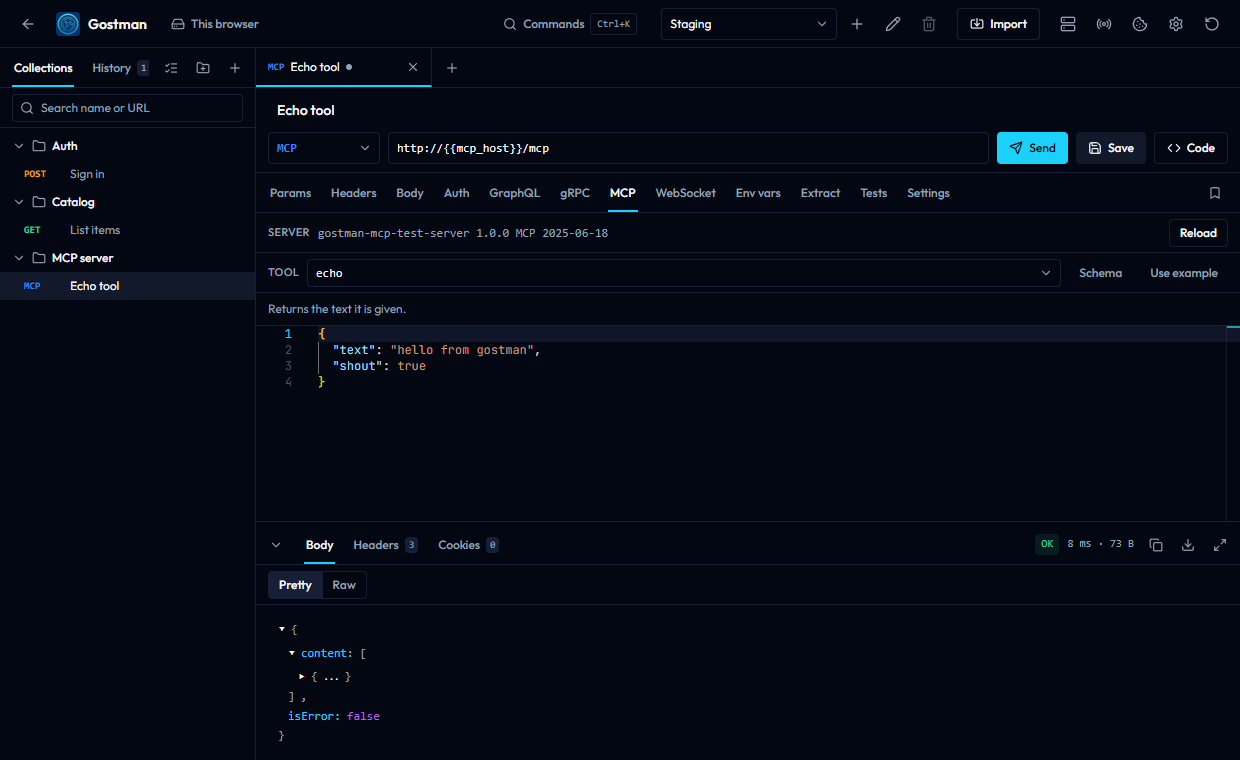
Load the tools
Select Load next to Server. Gostman connects, reads the tool list and shows the server's name, its version and the MCP protocol version it negotiated. The button changes to Reload. Hover the server line to see the server's instructions when it provides any.
Before you load tools, the Tool field is a text box where you can type a tool name. If the server lists no tools, the panel says so.
Call a tool
- Pick a tool from the Tool list.
- The tool's description appears under the toolbar.
- Select Schema to show the JSON Schema of the tool's arguments.
- Select Use example to replace the arguments with an example built from that schema. Choosing a tool fills the arguments with the example when they are empty or
{}. - Edit the JSON arguments and select Send.
An empty arguments field is sent as {}.
Result
The response body is the tool's result, which includes content and an isError flag. The status is OK, or Tool error when the server marks the result as an error.