This page covers the Import and Export dialog, what an import does and does not change, the OpenAPI spec viewer, spec sync and linter, and the Open in Gostman link builder. Encrypted share links and generated documentation are described in Sharing and documentation.
The Import and Export dialog
Open the dialog with the Import button in the header or the Import data and Export data commands in the command palette. It has three tabs: Import, Export and Share. The Share tab is covered in Sharing and documentation.
Importing
You can bring data in four ways:
- Choose files or Choose folder.
- Drop files, a folder or a
.zipon the drop area. - Paste content into the text box (Content to import).
- Enter the address of an OpenAPI spec and choose Load, or choose Open spec file to pick a spec on disk. Open spec file is available in the desktop app only.
Gostman reads the content after a short pause and shows a summary before anything is added. Nothing changes until you choose Import.
Supported formats
| Format | Notes |
|---|---|
| Postman | Postman files |
| OpenAPI | OpenAPI and Swagger specs |
| Insomnia | Insomnia exports |
| HAR | HAR captures |
| WSDL | WSDL services |
| Bruno | Bruno collections, as a folder or a .zip |
| Gostman | Gostman exports and share links |
The Format list defaults to Detect automatically. Choose a format yourself when detection picks the wrong one. A curl command pasted into the address bar of a request fills that request, see Collections, tabs and Git.
When you pick HAR, or the files you read include a HAR capture, a Leave out images, fonts, styles and scripts checkbox appears. Chosen entries are listed under Left out in the summary.
Files and folders
- The file picker accepts
.zip,.json,.yaml,.yml,.xml,.wsdl,.xsd,.har,.bruand Gostman share files. - A folder or archive is searched for importable files with those extensions. Hidden paths (any segment starting with a dot) and
node_modulesare ignored. - Up to 5,000 files are read. Each file and the files together are limited to 10 MB, and the dialog reports the limit when you go over it.
- Files must be text. A binary file is refused with a message naming it.
- With several files, the summary lists each file with its detected format and a total line.
The import summary
The summary reads, for example, name: Postman file, 12 requests, 3 folders and 2 environments. It counts requests and folders, and environments, variables and folder settings when there are any. Below the counts it can show:
- Warnings, in the warning color.
- A Left out list of what was skipped.
- For an OpenAPI spec loaded from pasted text, a note that sync is available only for specs loaded from an address or an opened file.
For an OpenAPI spec the summary also has a Browse button that opens the spec viewer before you import.
When you confirm, an Import complete message states how many requests, folders and other items were added, with any notes.
What imports never do
Imports are untrusted input, as described in the project notes:
- They only add data. An imported item never overwrites an existing one by id; items that clash get new ids.
- They never disable TLS verification. If a request in the file turned verification off, it is kept on and a warning names up to five such requests.
- They never carry OAuth tokens.
- Folders in a loop or nested deeper than 32 levels are moved to the top level, with a warning.
- Variables from the file are merged into the active environment. If the active environment is not valid JSON, the variables are skipped with a note. An environment whose variables are not valid JSON is skipped by name.
- Collection settings are adopted only when the open collection has none, see Folder and collection settings.
Scripts and OAuth 2.0
Scripts and OAuth 2.0 settings are kept when you import them, but you decide first. If the import contains any request, folder or collection setting that carries them, Gostman asks Import scripts and sign-in settings? with the number of items. Choose Import them to keep them. Cancel to import everything else without them.
In a folder workspace, imported items that carry scripts or OAuth 2.0 settings stay restricted until you trust the folder, see Collections, tabs and Git.
Share links
Pasting a share link, or choosing a share file, shows a preview with the requests, folders and environments. A share protected with a passphrase asks for it, and a file sent without its key asks for the key. Variables you already have keep your values. Shared imports go through the same prompt for scripts and OAuth 2.0 settings. Creating shares is covered in Sharing and documentation.
Exporting
The Export tab previews the content, shows how many requests, folders and environments the workspace has, and offers a copy button and Save file. A secret scan runs on the workspace and warns before you save when it finds credentials, see Command line. The preview shows the first 20,000 characters; the saved file is complete.
| Format | What you get |
|---|---|
| Gostman | Full backup: requests, folders and every environment. OAuth tokens are removed |
| Postman | Collection v2.1 with the active environment as collection variables |
| OpenAPI JSON | OpenAPI 3.0 description of the HTTP requests |
| OpenAPI YAML | OpenAPI 3.0 description of the HTTP requests |
| Markdown | Readable API documentation |
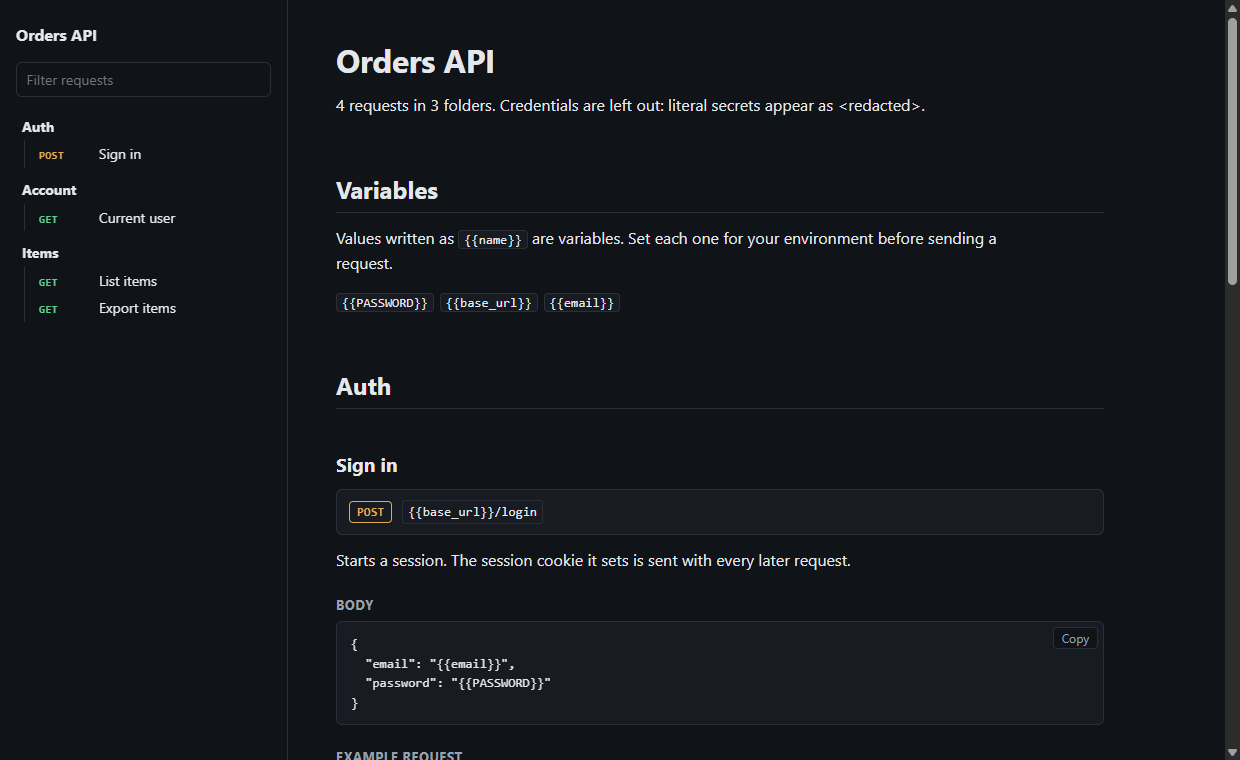
| HTML docs | One self-contained page to publish or print. Credentials are left out and variables stay as {{name}} |
| Bruno | A folder of .bru files with environments, saved as a .zip |
| curl script | One curl command per request. Credentials become environment variable placeholders |
| HAR | HTTP Archive 1.2 with the requests and no responses |
For Bruno, curl script and HAR exports, an Include credentials checkbox is off by default. Off, passwords, tokens and secret-named headers or variables are replaced with {{NAME}} placeholders. On, credentials are written into the file in plain text.
HTML docs options
Choosing HTML docs shows three options:
- Documentation title, which defaults to
API documentation. - Include example responses, on by default.
- Include a Try it panel, off by default.
What the page contains and how it redacts values is described in Sharing and documentation. From the command line, use gostman docs, see Command line.
OpenAPI specs
Importing a spec
Load a spec from an address, a file or pasted text, then choose Import. Each operation becomes a request. A spec loaded from an address or an opened file is linked to the folder that the import creates, so you can sync it later. Variables that the spec defines are added to the active environment when it does not have them yet.
Spec viewer
Choose Browse in the import summary, or Browse API spec in the context menu of a linked folder, to open the API spec viewer. It has three tabs:
- Operations groups operations by tag, or No tag when they have none. Search operations matches the method and path, summary, operation id and tags. Selecting an operation shows its summary, description, Authentication, Parameters, Request body and Responses, with schemas and examples. Deprecated operations are struck through and badged. Send to request tab opens the operation as a new request.
- Models lists schemas, with Search models. Selecting one shows its fields.
- Lint shows linter findings.
Spec sync
For a folder linked to a spec, the folder menu has Check for spec updates. It fetches the spec again and opens Spec updates, which shows when the folder was last synced and groups the differences as:
- New operations
- Changed operations
- Removed operations
Each item has a checkbox. Operations you edited in Gostman are marked edited here and start unchecked, because checking one replaces your edits to its URL, parameters, body and authentication. Choose Apply selected to add, update and remove the checked requests. When nothing differs, the dialog says The collection already matches the spec. A folder without a saved address shows This collection has no saved spec address.
Linter
The Lint tab checks the spec and lists findings in three severities: errors, warnings and info. The buttons at the top show the count for each severity and toggle whether it is listed. A finding shows its message, the rule and the operation or path. Selecting a finding that belongs to an operation opens that operation in the Operations tab. A clean spec shows No problems found.
The Lint API spec command in the command palette opens the viewer on the Lint tab for the most recently synced linked spec. If no spec was imported from an address or a file, it tells you to import one first.
On the command line, gostman lint runs the same kind of check with report formats, a failure threshold and a rules file. See Linting an OpenAPI spec.
Open in Gostman links
A link can ask Gostman to download a published collection or spec and import it. The link builder is in the Share tab, in a section titled Open in Gostman link.
- Paste the public address of the file into Public address of the collection. It can be a Postman collection, OpenAPI file, Insomnia, HAR or Gostman export.
- Copy one of the three results: Web app link, README badge (Markdown) or Desktop app link.
The builder refuses addresses that are not valid web addresses, are longer than 2,048 characters, contain a user name or password, or do not use https.
When someone opens the link, the Open from a link dialog shows the source host and address and a warning to continue only if they trust the sender. Nothing is downloaded until they choose Download, and nothing is imported until they choose Import. After the download, the dialog shows the detected format, the counts, and how many items carry scripts or OAuth 2.0 settings. Those items are asked about before import, and imported folders stay restricted until you trust them. The link formats, size limits and restrictions are in Sharing and documentation.